Sign-in screens
Sign in, forgot password, reset password and the two-factor step all share one design. Its settings are under Admin → Theme → Look, in Branding and Sign-in page.
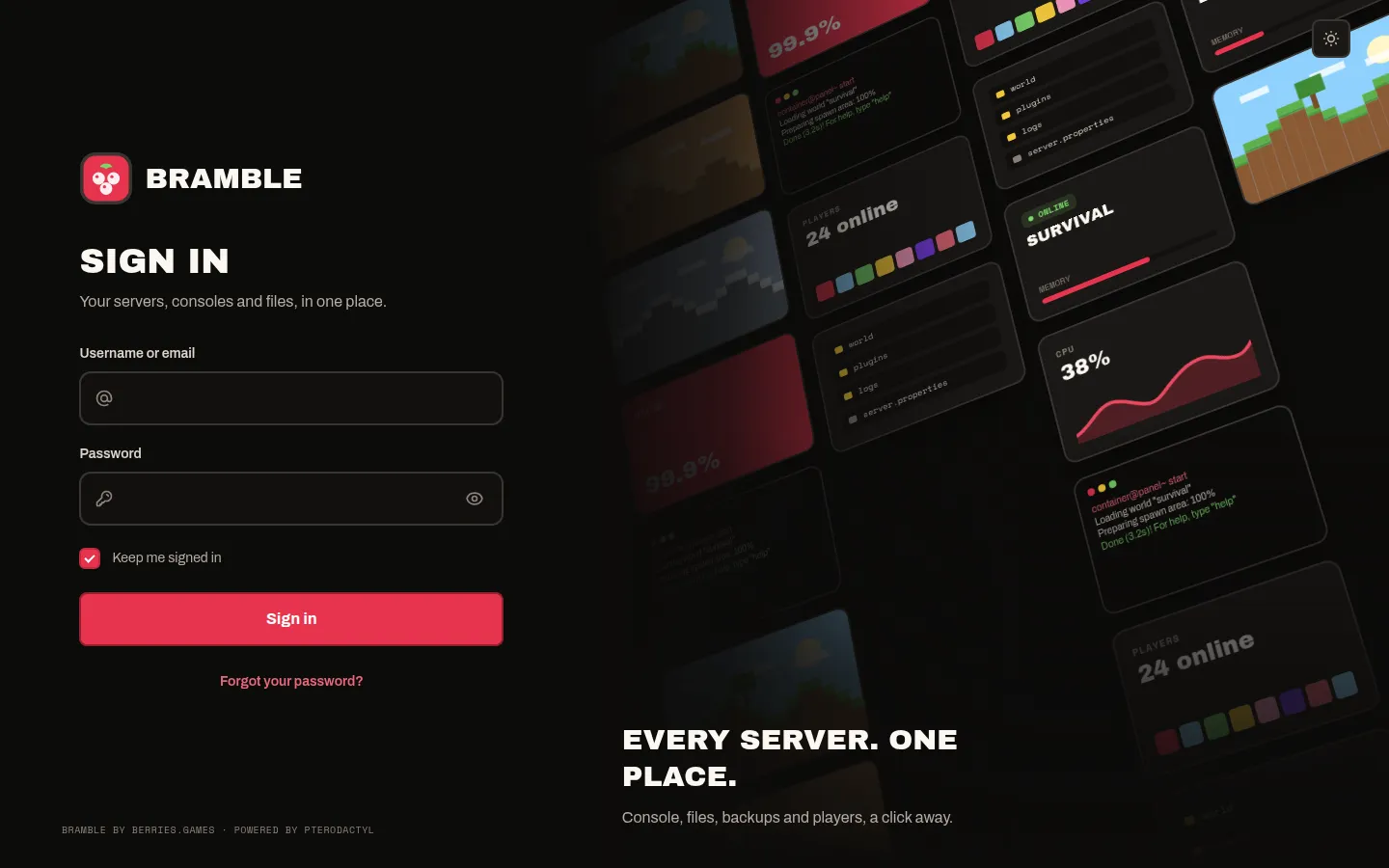
The picture wall
On large screens a tilted wall of tiles drifts slowly beside the form. It stands still for players who've turned on "reduce motion" on their device. On phones the wall is hidden and the form fills the screen.
- Built-in tiles (the default) are original drawings in your preset's colours: blocky landscapes, server cards, a console, graphs and player lists.
- Your own pictures: add up to 12 links under Sign-in wall pictures, one per line. Landscape pictures work best, around 640 × 400 or larger. Thumbnails appear under the box as you type.
Warning: only use pictures you have the rights to show. Game cover art belongs to the games' publishers.
Headline and text
The Headline and Text under it sit over the wall. Use them for your host's slogan, or clear both to hide them.
Demo account
Set a Demo username and Demo password to add a "Just looking around?" card under the form. Its Try it button signs visitors straight in to that account.
- Anyone can see this password, so use an account made just for the demo: no admin rights, and a sub-user with view-only permissions on a showcase server.
- Admin accounts are refused.
- Demo sign-ins never stay signed in after the browser closes.
- Leave both fields empty to hide the card.
Keep me signed in
Players choose whether to stay signed in after closing the browser. It's ticked by default, which is how Pterodactyl has always behaved. The choice also carries through the two-factor step.